(NOTE: due to variances in phone design, your particular phone may display
screens differently than those illustrated)
Use your mobile phone's internet browser to navigate to http://www.onlinecheckregister.com. Most phones will automatically
display the login prompt. If your phone does not display the login screen, try
one of the following alternate addresses:
http://www.onlinecheckregister.com/m
OR http://www.onlinecheckregister.com/m/
|
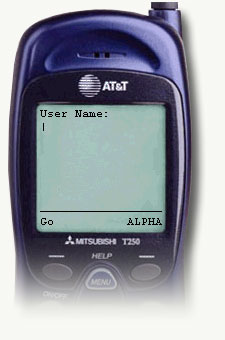
At the User Name prompt, enter your user name and click GO.
|
|
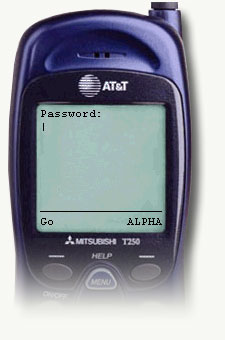
At the Password prompt, enter your password and click GO.
NOTE: if your phone browser supports cookies, your user name and password will
not be required the next time you log in.
|
|
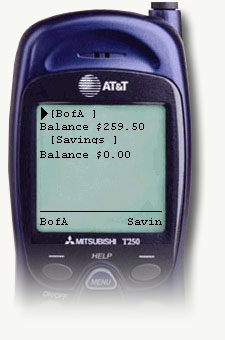
The main page displays your accounts and current balances. Add this page to
your "favorites" for easy access in the future.
To enter an expense or deposit, highlight and click the desired account.
|
|
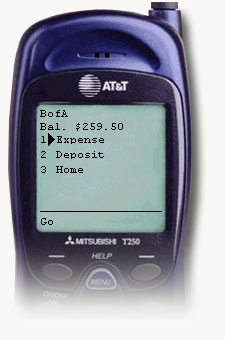
Select and click Expense or Deposit to enter a transaction or click Home
to return to the account selection page.
|
|
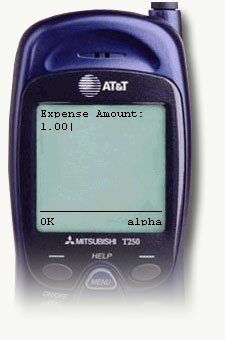
Enter your expense or deposit amount and click OK.
|
|
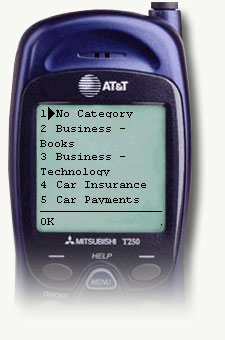
Select and click an appropriate Category for the expense or deposit.
|
|
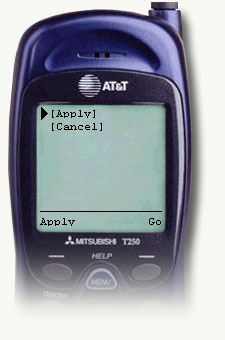
Click Apply to commit the transaction or Cancel to return to the account
selection page. After commiting the transaction with the Apply button,
you will be returned to the account selection page and your new balance
will be displayed.
|
|